You, your laptop, and $100.
Haven't really opened a computer in years? Perfect. We start there, at the power button, and we don't skip a single step. By the end, money lands in your actual bank account. I'll walk you through it like a big sister in the kitchen. Patient, slow where it counts, no talking down to you. Easy peasy lemon squeezy.
One bite at a time. Don't read ahead, don't open ten tabs. Do the step in front of you, check the little green "you did it when," then come back for the next one. If something looks scary, that's just because it's new. New is not hard.
Turn it on and let it breathe
Open the laptop and press the power button. If it's been a while, it might think for a few minutes when it wakes up, updating itself. That's normal. Let it. Go make tea.
 👀 Where the power button usually is
Get on the internet
Look at the top corner of your screen for the little fan-shaped wifi symbol. Click it, pick your home network, and type the password (it's usually on the back of your router box).
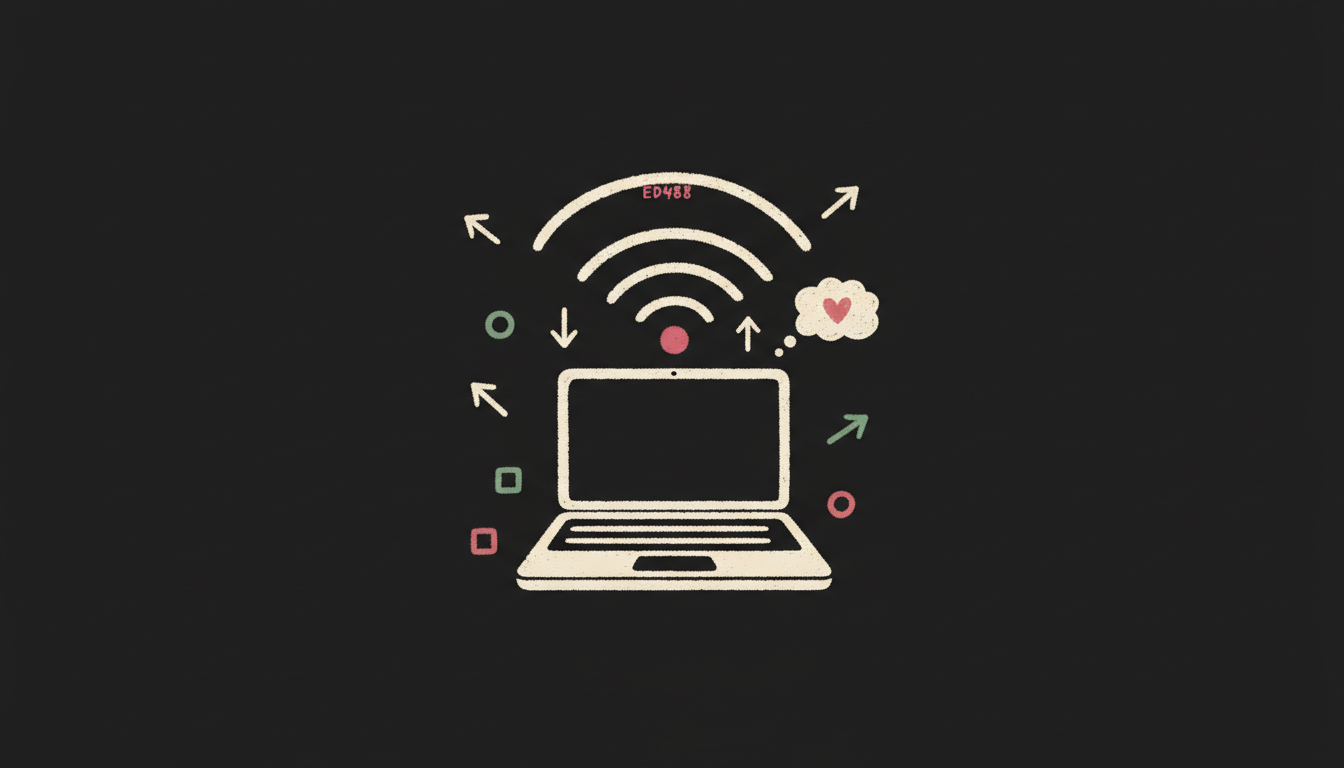 👀 Getting on the wifi
Open your browser
The browser is the window to the internet. Find Chrome, Safari, or Edge on your screen and click it. We'll live here for the easy parts.
Learn the one magic skill
This is the big one. Any time something breaks or confuses you, you take a picture of your screen, paste it to your helper, and say "what do I do here?" That single move solves almost everything. You never have to figure it out alone.
Your hands, Windows: press ⊞ Win + Shift + S, then drag a box.
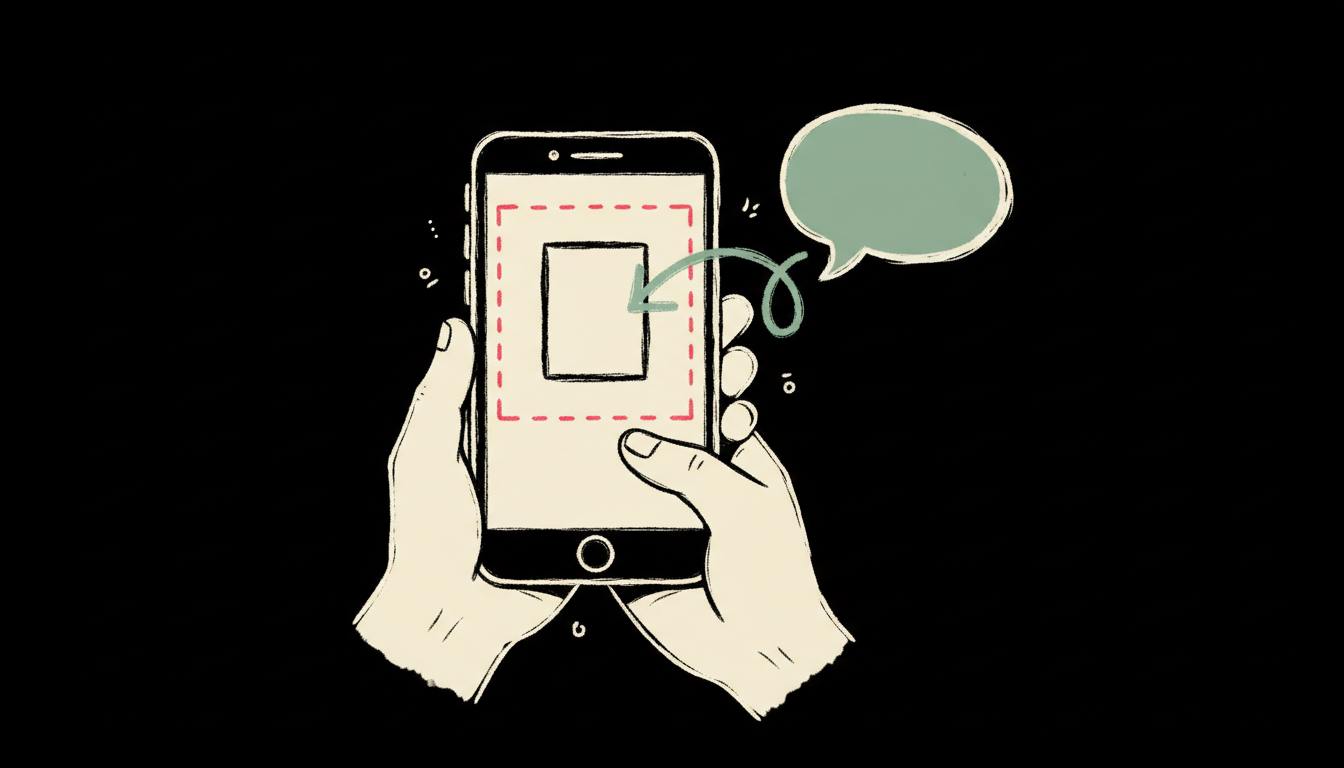 👀 Screenshot, then paste. The magic move.
See? Easy peasy lemon squeezy.
Meet your helper (Claude in the browser)
This is the friend you ask everything. In your browser, go to claude.ai and make a free account with your email. When it opens, just say hi and tell it you're a total beginner. It will meet you exactly there.
 👀 Meeting your helper
Tell your helper who it is for you
Paste it this, word for word. It tells Claude to slow down and teach, not show off.
"You are my patient big sister teaching me tech. I haven't used a computer much in years. Explain everything in small steps, no jargon unless you explain it first. When I'm stuck I'll paste a screenshot, just tell me the next click."
Get your workspace (the kitchen counter)
This free app is where the building happens. It's called VS Code. Go to code.visualstudio.com, click the big download button, and install it the way you install anything: open the file it downloads and follow the arrows.
 👀 Your workspace, the kitchen counter
Hire your chef (Claude Code)
Your helper in the browser gives advice. Your chef lives inside VS Code and actually cooks: it builds the thing on your computer. You add it once.
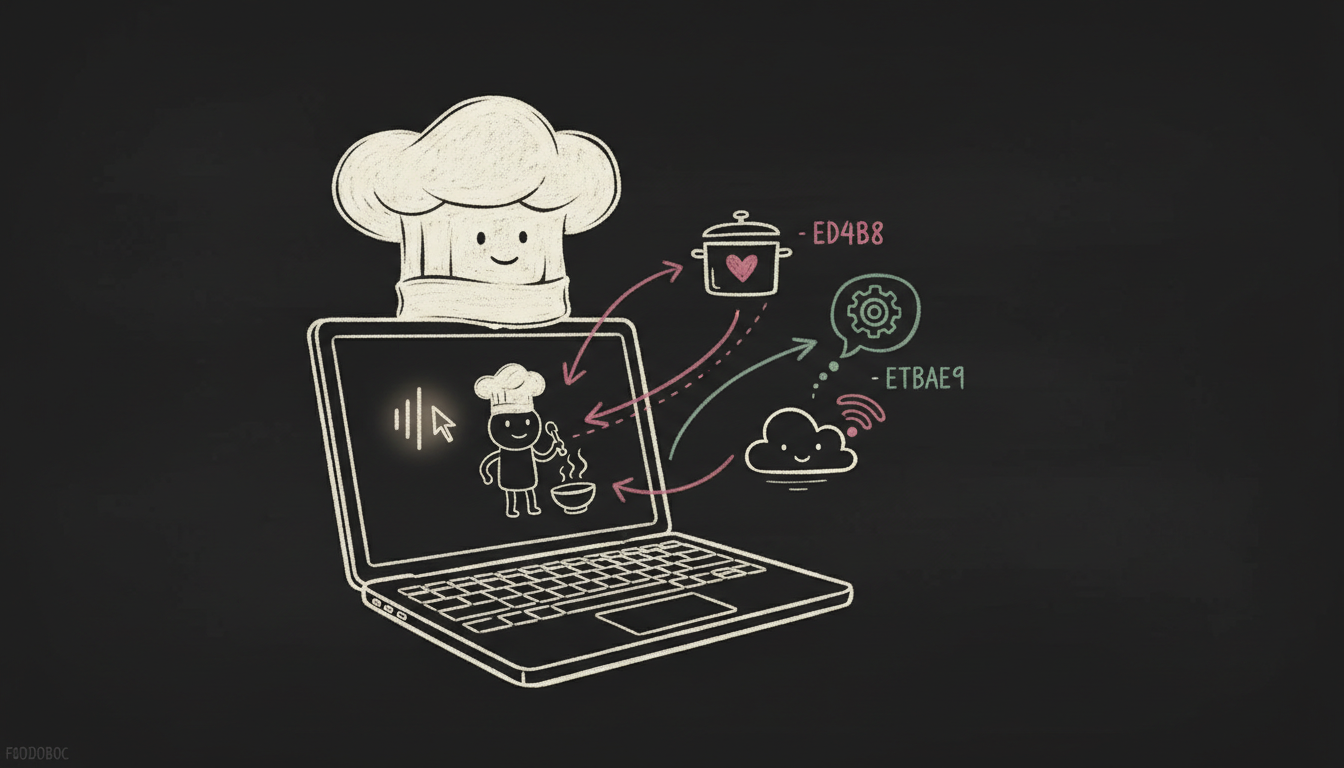 👀 Your chef, working inside the computer
Make one clean shelf (a folder)
Every dish needs its own bowl. Make one folder on your desktop for your project, and open it in VS Code. Everything for this business will live here, tidy and in one place. No mess, no spaghetti.
Kitchen's open. The hard part is already behind you.
Name the one thing you're selling
Not ten things. One. Finish this sentence with your helper: "I help [these people] with [this problem]." If it takes twenty minutes to explain, it needs to get simpler. Clear beats clever every time.
Pick a name and a look
A name, two or three colors, and one font. That's a brand at this stage. Don't agonize. You can change it later, and you will. Use a free design tool like Canva, or ask your helper for three name ideas and a simple color set.
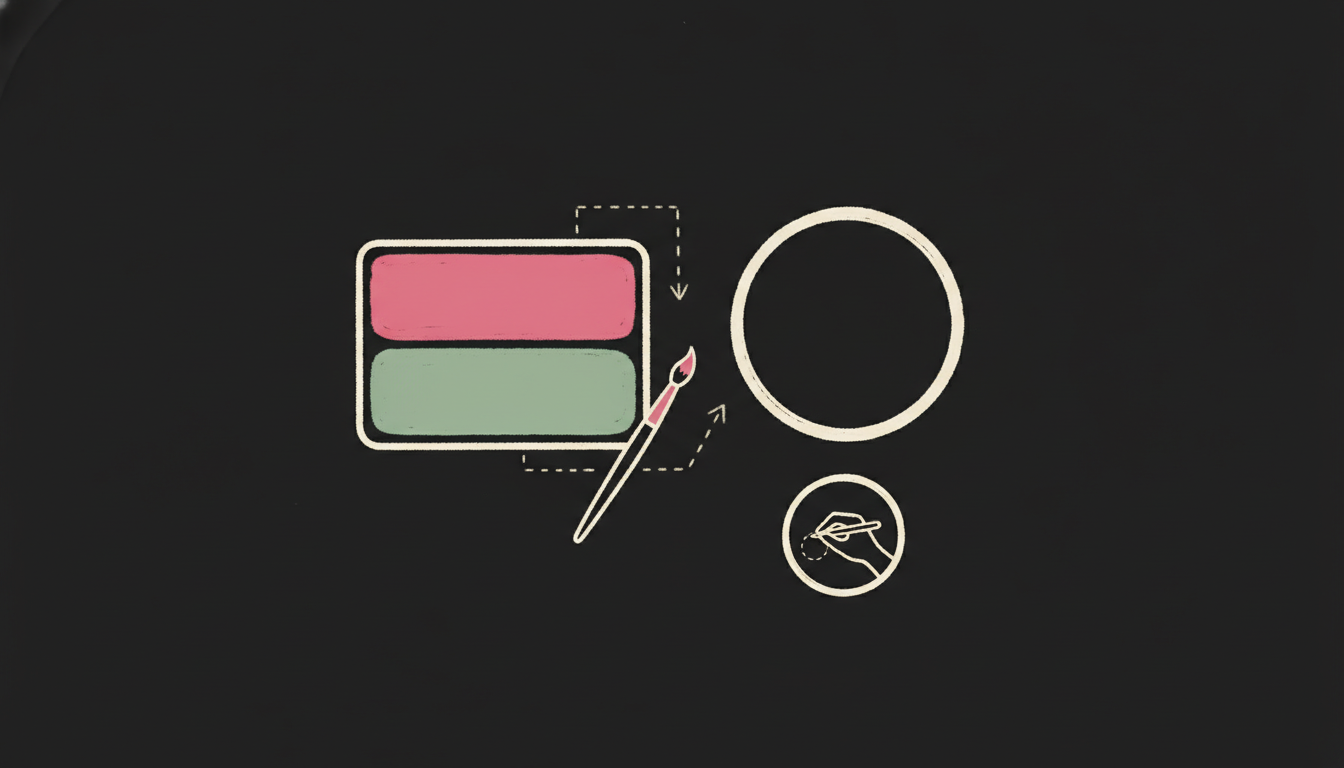 👀 Designing your look
Find your voice (it's just yours)
Write the way you text a friend. Warm, clear, human. Ask your helper to take your rough words and "keep my voice, just tidy it." You're not becoming a brand. You're letting people meet you.
Menu's written. People know what they're ordering.
Tell the chef the dish
In VS Code, tell your chef what you want in plain words. Like ordering. "Build me a simple one-page website for my business, with my name, what I do, and a button to pay me." Then let it work.
Taste it
When the chef is done, tell it "run it so I can see it." It gives you a link. Click it and your website opens in your browser. That's your dish, on the plate.
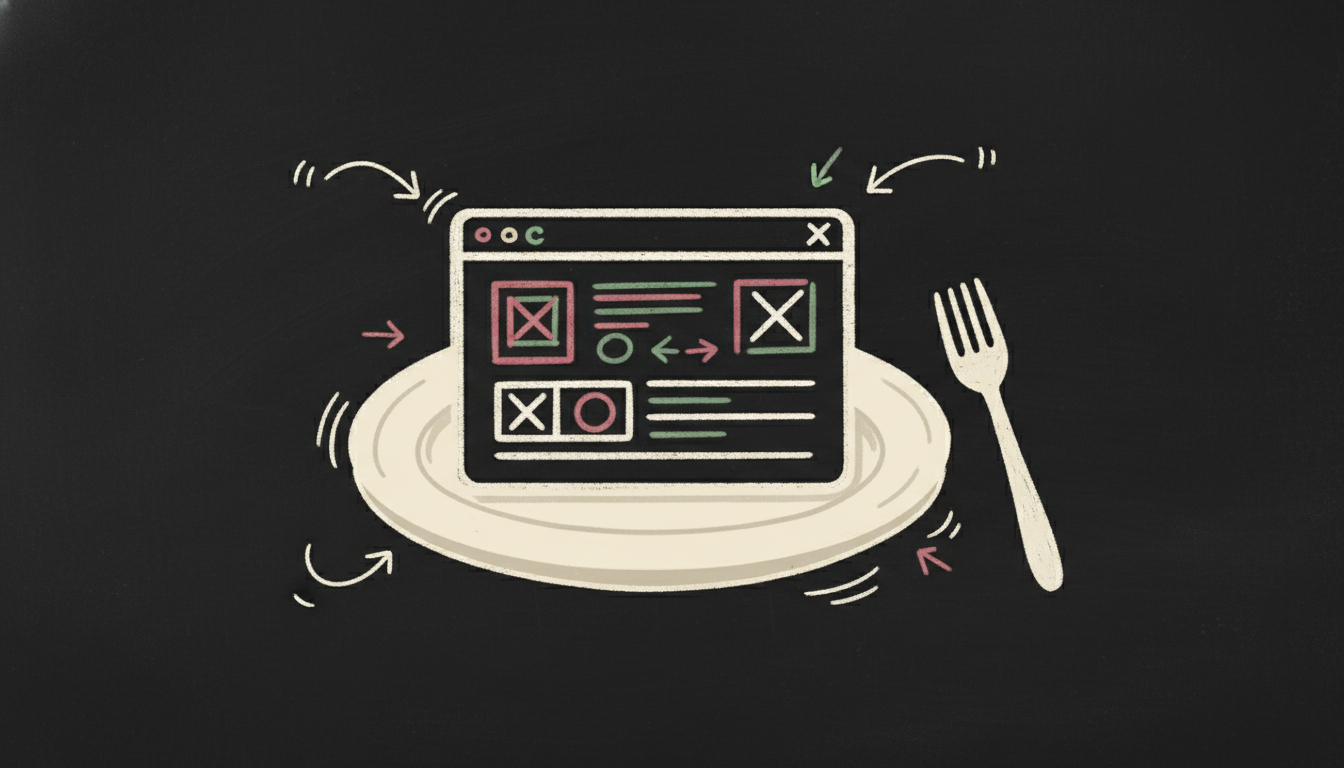 👀 Your site, plated and ready to taste
Send the dish back if it's wrong
Don't like something? Take a screenshot, paste it to the chef, and say what's off. "Make the button pink." "The text is too small." It fixes it, you look again. This back-and-forth is the whole job. Real builders do it all day.
Open the doors (put it on the internet)
Right now only you can see it. To let the world in, we put it online with a free service. Ask your chef: "help me put this online so anyone can visit, step by step." It walks you through it and gives you a real web address.
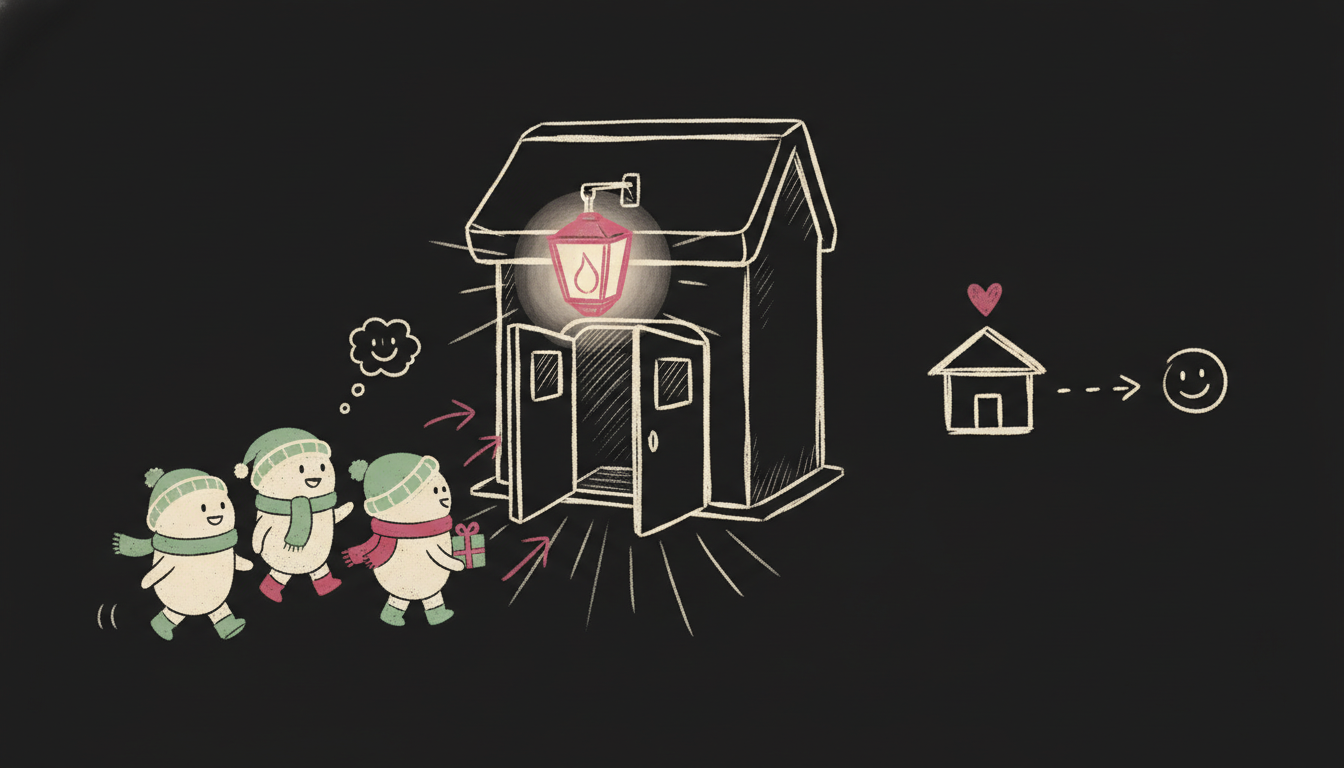 👀 Open for business
Plated and served. Take a breath. Look what you did.
Three tiny polish moves
Ask your chef for these one at a time: a friendly headline at the top, a real photo of you or your work, and a clear single button that says exactly what happens next ("Book me," "Buy now"). Three small things, big difference.
Show one person
Send the link to one friend and ask, "would you get what this is and how to buy?" Fix the one confusing thing they name. Then stop polishing. Done and live beats perfect and hidden.
Open the till (a Stripe account)
Stripe is the cash register the internet uses. Go to stripe.com, make an account, and connect your bank (the account number and routing number, the same details on a check). This is how the money gets from a stranger to you.
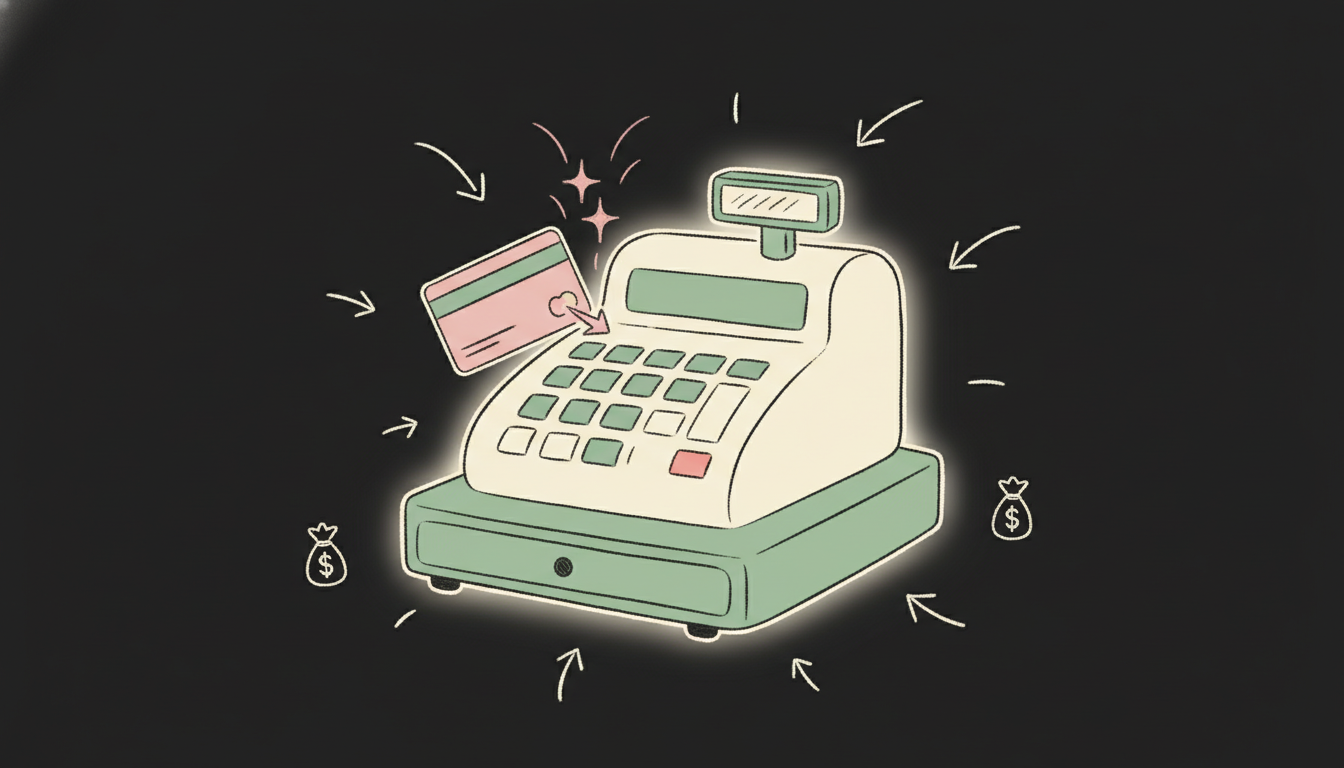 👀 Your cash register
Make a payment link
You don't need code for this part. In Stripe, make a Payment Link: name your offer, set the price, and Stripe gives you a web link. Anyone who clicks it can pay you with a card. That link is your money button.
 👀 Your money button
Put the button on your site
Give that link to your chef: "make the button on my site go to this payment link," and paste it. Now your website doesn't just look nice. It takes money.
Tell people, then follow up
Send the link to three people who might need this, today. Then, the quiet secret of all business: follow up. A simple "hey, did you get a chance to look?" makes most of the sales. Not pushy. Just present.
The first deposit
When someone pays, Stripe holds it for a few days the first time, then sends it to your bank automatically. You'll get a little "you got paid" notice. That's the moment. From a cold laptop to money in your account, by your own hands.
 👀 The first deposit
Easy peasy lemon squeezy. You're a business now.
Download the Starter Kit: the recipe, the checklist, the golden prompts, and a folder for your own files. Friendly folder names, nothing scary. Start here, then bring it into your project.
You can do every step above on your own. And you don't have to do it alone. If you'd rather have the recorded workshop walking you through it, or a room building right alongside you: